 Swiftlisted
How to Crosslist from Depop to Grailed (Without Retyping Listings)
Expanding your Depop shop onto Grailed is one of the most effective ways to increase your reach, particularly for vintage clothing, streetwear, and designer items. However, manually copying photos, copying descriptions, re-selecting sizes, and looking up designer tags on Grailed takes hours. By understanding the core differences between Depop and Grailed and using Swiftlisted, you can import your existing Depop listings and push them live to Grailed in just a few clicks.
Depop vs Grailed: Key Differences in Taxonomy and Audience
While both platforms cater heavily to vintage and second-hand fashion, their audiences and listing structures differ significantly. Depop focuses heavily on Gen-Z trends, aesthetic style tags, and visual discovery. Its category structure is relatively simple, relying on descriptive tags and age attributes to help buyers discover items.
Grailed, by contrast, is tailored toward menswear, curated vintage, and high-end streetwear. It enforces a strict taxonomy based on specific departments, granular categories, and verified designer names. When crosslisting from Depop to Grailed, your items must be translated from Depop's casual tag style into Grailed's formal department and brand structure.
- Depop uses broad categories paired with custom aesthetic and style tags.
- Grailed requires specific department selection (such as Tops, Outerwear, or Footwear) paired with precise designer autocomplete matching.
- Sizing and category formats differ between platforms, meaning direct copy-pasting often results in missing fields on Grailed.
Step 1: Set Up Your Browser Session
Swiftlisted automates browser actions directly inside your desktop browser for platforms that do not provide public listing APIs. To list on both Depop and Grailed, you need to set up your workspace correctly on a desktop or laptop computer running Google Chrome.
Ensure you are logged into both your Depop seller dashboard and your Grailed seller account in the same Chrome browser profile. Install the Swiftlisted Chrome Extension from the Chrome Web Store. Because crosslisting automation relies on the extension to interact with marketplace browser windows, listing cannot be performed on a mobile device.
Step 2: Import Your Depop Listings into Swiftlisted
Rather than building listings from scratch, you can import your live catalogue directly from Depop into your central Swiftlisted inventory grid (the Stockroom).
Navigate to the Integrations section of your Swiftlisted dashboard, select Depop, and initiate an import. Swiftlisted will fetch your active photos, titles, descriptions, and pricing. If an item has already been imported previously, Swiftlisted merges the records to prevent duplicate entries.
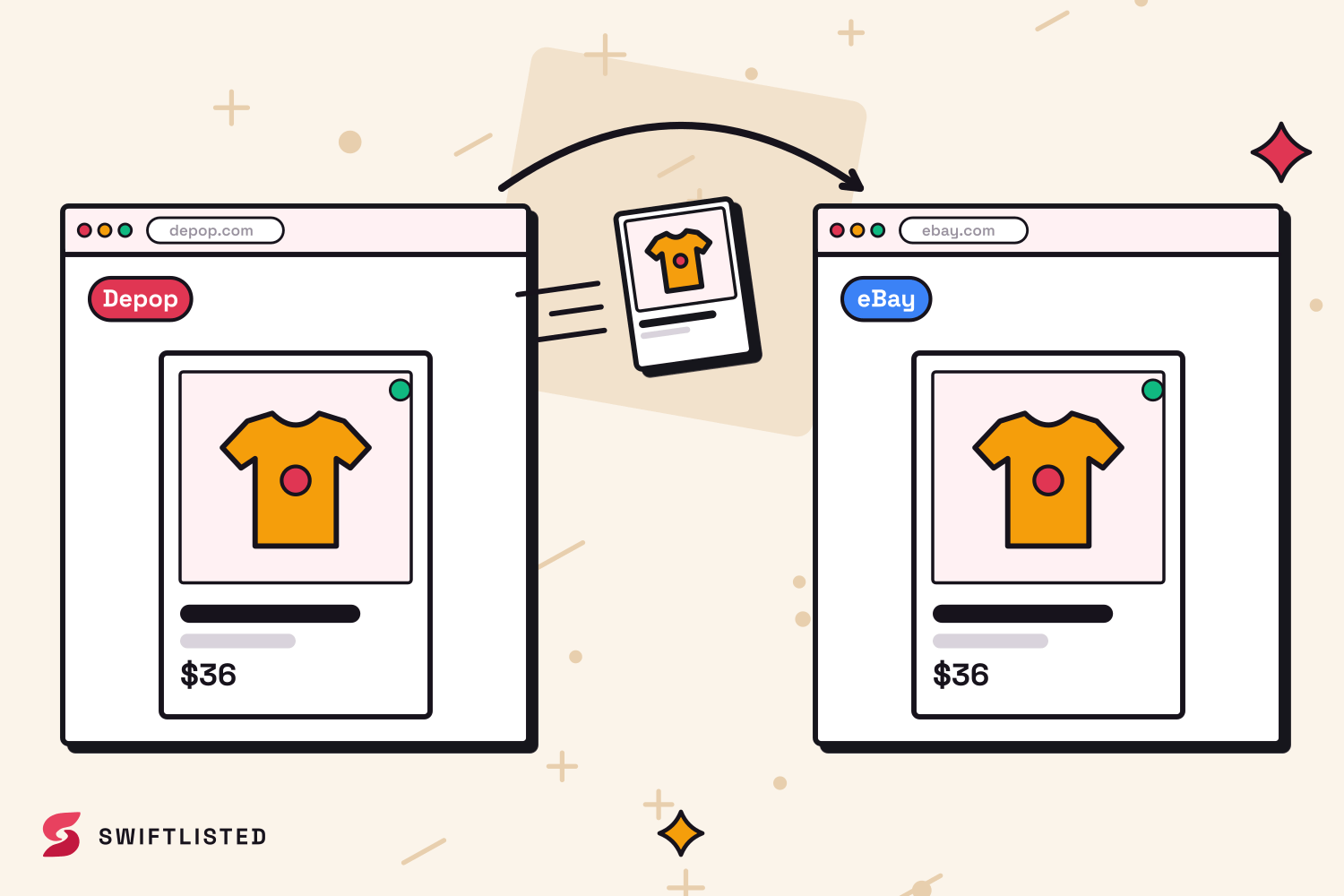
Step 3: Review Attribute Mapping and Designer Tags
Before publishing your imported Depop items to Grailed, review your inventory drafts inside the Swiftlisted grid. Swiftlisted uses universal mapping to convert generic categories and sizes into Grailed's specific department hierarchy.
During this review stage, double-check that your brand names match Grailed's recognized designer index. If a niche brand from Depop does not have an exact match on Grailed, Swiftlisted intelligently maps it to Grailed's 'Other' category option to prevent submission errors.
- Verify that universal categories map into Grailed's appropriate department hierarchy.
- Confirm footwear and apparel sizes convert correctly into Grailed's sizing standards.
- Adjust marketplace-specific pricing if you want to set higher or lower asking prices on Grailed.
Step 4: Crosslist to Grailed and Manage Inventory
Once your drafts are verified in the inventory grid, select the items you wish to post (up to 50 items per batch) and launch the listing process. The Swiftlisted Chrome extension will open a background tab, navigate through Grailed's listing form, fill in the mapped fields, and publish your items.
Because extension-driven platforms process sequentially to prevent browser collisions, avoid closing Chrome while the run is active. Once live, keeping track of sales across both accounts is critical. By enabling automatic sold detection on supported plans, Swiftlisted checks your connected marketplaces in the background, notices when an item sells on Depop, and automatically delists it from Grailed so you never double-sell an item.
Common questions
- Can I crosslist from Depop to Grailed using my mobile phone?
- No. Crosslisting to Depop and Grailed requires the Swiftlisted Chrome extension, which runs on desktop or laptop browsers (Mac, Windows, and Linux). The web dashboard can be checked on mobile, but listing automation requires a desktop environment.
- Do I have to give Swiftlisted my Depop or Grailed passwords?
- No. Swiftlisted never asks for or stores your passwords. The Chrome extension works safely inside your existing, signed-in browser sessions.
- What happens if a brand from Depop is not listed on Grailed?
- If Swiftlisted cannot match your Depop item's brand to an established Grailed designer tag, it automatically selects Grailed's 'Other' designer option so the listing posts without error.
- How does Swiftlisted prevent double-selling across Depop and Grailed?
- With sold detection enabled on paid plans (detailed on the swiftlisted.ai pricing page), Swiftlisted monitors your shops for sales. When an item sells on Depop, Swiftlisted marks it as sold in your central inventory and automatically delists it from Grailed.
List once, sell everywhere
Swiftlisted photographs, describes and crosslists your stock across every marketplace you sell on — then delists it everywhere when it sells.
Start free trial