 Swiftlisted
How to Crosslist from Whatnot to Vinted: A Reseller Guide
If you sell stock on Whatnot, you are likely accustomed to fast-paced live auctions and stream store lists. However, relying solely on live shows leaves money on the table when unsold items sit in storage between streams. Vinted is one of the largest fixed-price fashion marketplaces, making it an ideal channel to expand your buyer reach for clothing, footwear, and accessories. Moving inventory manually from Whatnot to Vinted usually involves retyping titles, re-uploading photos, and converting conditions. With Swiftlisted, you can import your Whatnot catalogue into a central stockroom and crosslist directly to Vinted on your computer without starting from scratch.
Whatnot vs Vinted: Key Platform Differences
Whatnot and Vinted serve very different selling environments. Whatnot is built around live auctions and stream store lists where buyers purchase items quickly during video broadcasts. Vinted, in contrast, is a structured fixed-price fashion catalogue where shoppers search for specific items using detailed filters such as brand, size, colour, and condition.
Because Vinted is heavily focused on apparel and style, listings require accurate structured data. While a Whatnot live stream listing might rely on quick verbal descriptions or simple titles, Vinted requires specific catalogue categories and defined item conditions, such as 'New with tags' or 'Satisfactory'. When you crosslist using Swiftlisted, the system automatically translates your universal item details and converts conditions into Vinted's native catalogue options, ensuring your items rank correctly in search results.
Step 1: Set Up and Import Your Whatnot Inventory
To crosslist your inventory, you need a laptop or desktop computer running Google Chrome with the Swiftlisted extension installed. Because extension-driven marketplaces run inside your own signed-in browser sessions, ensure you are logged into both Whatnot and Vinted in the same Chrome profile.
Inside your Swiftlisted dashboard, navigate to Integrations and connect your accounts. You can then import your active Whatnot listings and stream drafts into your central Stockroom. Importing pulls across your existing images, titles, and descriptions, saving you hours of manual data entry.
- Log into your Whatnot and Vinted seller accounts in Google Chrome on your computer.
- Install the Swiftlisted extension from the Chrome Web Store.
- Use the shop importer in your dashboard to bring active Whatnot inventory into your central Stockroom.
Step 2: Review and Adapt Items for Vinted
Once your Whatnot items are imported into your Stockroom, they land as editable drafts in a central grid. This step allows you to review and polish your listings before they go live on Vinted.
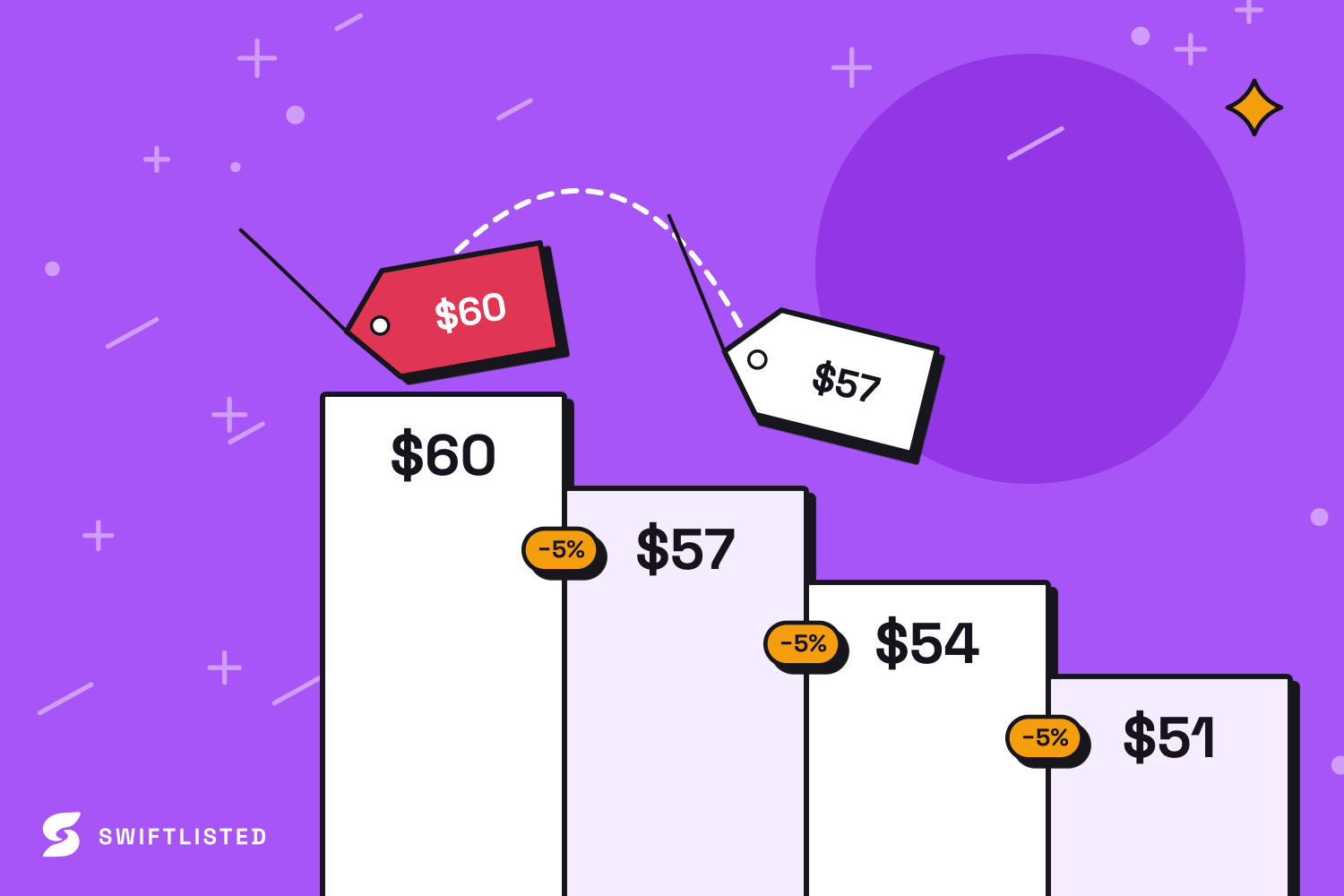
Swiftlisted utilizes AI vision to scan uploaded images and automatically fill in missing listing fields, including universal categories, subcategories, brands, materials, and colours. You can also override prices specifically for Vinted to adjust for platform pricing strategies. If your photos need touching up, you can use built-in image editing tools like background removal directly from the dashboard. Every field remains fully editable until you choose to publish.
Step 3: Crosslist to Vinted and Automate Inventory Sync
When your drafts are reviewed, select your items and launch the crosslisting process. Swiftlisted opens Vinted inside your browser session and completes the listing forms, mapping categories, sizes, and attributes automatically.
Managing stock across multiple sales channels requires prompt inventory updates to avoid double-selling. Swiftlisted includes automated sold detection that monitors your connected platforms in the background. The moment an item sells on Whatnot or Vinted, Swiftlisted marks it as sold in your Stockroom and automatically delists it from your other marketplaces, keeping your seller ratings safe.
Common questions
- Do I need a computer to crosslist from Whatnot to Vinted?
- Yes. Listing automation for Vinted and Whatnot runs through the Swiftlisted Chrome extension on a desktop or laptop computer running Mac, Windows, or Linux. Mobile browsers do not support extensions, although you can access your inventory dashboard on a phone.
- How does Swiftlisted handle Vinted category and condition mapping?
- Swiftlisted takes your item's universal category and condition and converts them into Vinted's specific catalogue choices automatically. You can check and modify these mappings in the grid before crosslisting.
- What happens when an item sells on Whatnot or Vinted?
- Swiftlisted features automated sold detection that checks your stores in the background. When a sale is detected, the item status updates to sold and Swiftlisted automatically removes the listing from your other connected marketplaces.
- Can I set a different price for Vinted compared to Whatnot?
- Yes. You can keep your base price in your Stockroom while entering a custom price override for Vinted before you crosslist.
List once, sell everywhere
Swiftlisted photographs, describes and crosslists your stock across every marketplace you sell on — then delists it everywhere when it sells.
Start free trial