 Swiftlisted
How to Import Your Existing Listings Into a Crosslister
If you already have a live shop on one marketplace, you do not need to re-photograph and retype your stock to start crosslisting. Most crosslisters, including Swiftlisted, can import your existing listings with their photos and details. The job is less about the import button and more about checking what came across, dealing with duplicates, and deciding which marketplace is the source of truth before you let anything post anywhere else.
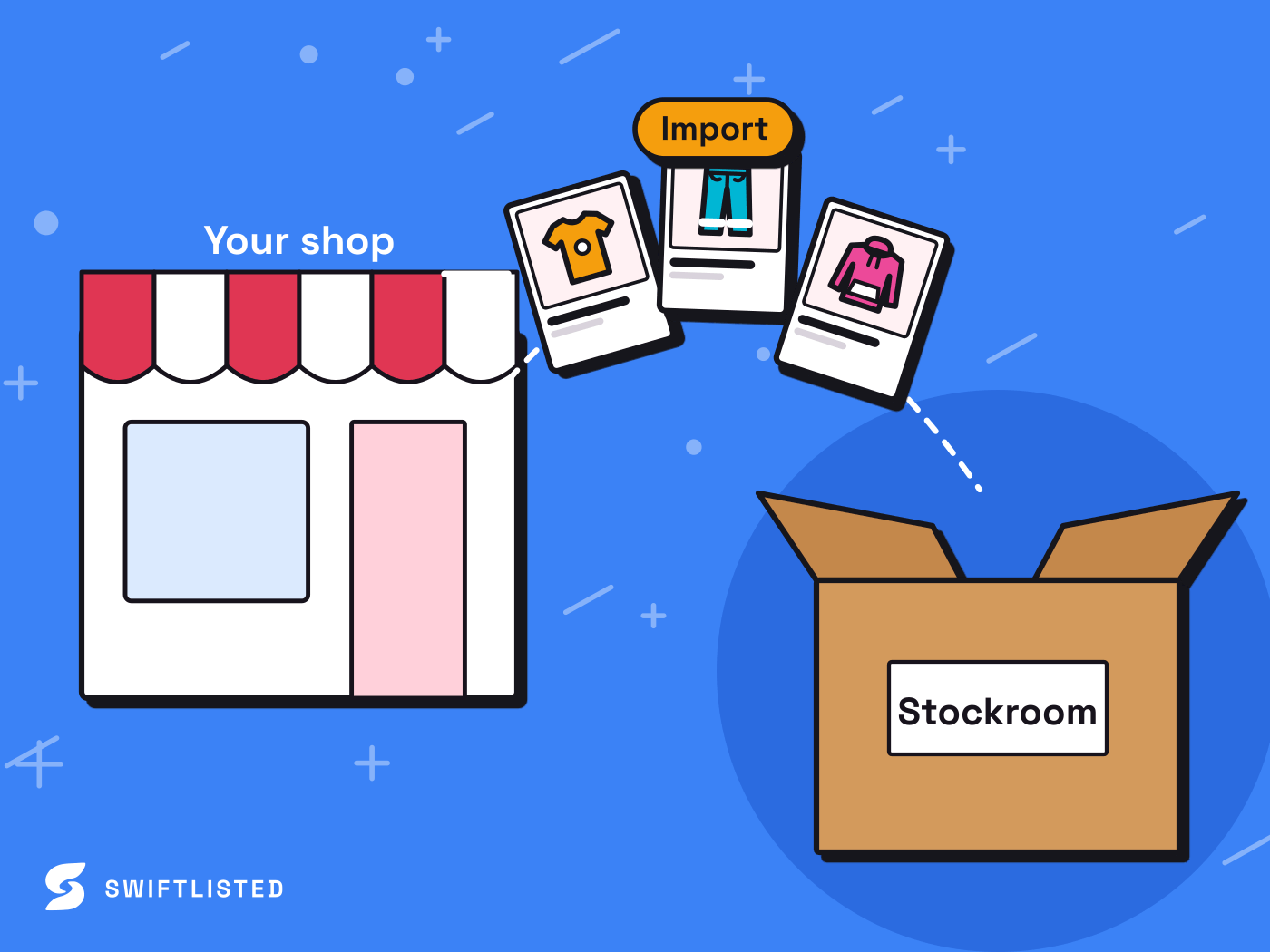
Before you import: prepare the shop you are bringing in
The cleanest import starts with a tidy source shop. Imported data is only as good as the listings it comes from, so spend an hour before you connect anything. Check that titles are not stuffed with keywords you have since stopped using, that prices reflect what you currently want for each item, and that sold items are actually marked sold on the source marketplace. Anything that is still showing as live but has already sold will come into your inventory as live and can cause a double sale later.
Decide which marketplace is your primary shop. If you sell on Depop and Vinted and only want one of them treated as the master copy, make that the one you import from first. Swiftlisted will merge duplicates it recognises into existing records, but the merge is only as sensible as the data you feed it, so a clean primary source avoids having to untangle two half-matching records afterwards.
Make sure you are signed in to the marketplace in the same Chrome profile you will use for Swiftlisted, if that marketplace is one that works through the browser extension. Depop, Vinted, Grailed, Whatnot and Facebook Marketplace read your listings from your signed-in session, so a signed-out browser will stop the import rather than quietly returning nothing. eBay, Etsy and Shopify connect through their own authorisation screens and do not depend on your browser session in the same way.
Run the import and read what actually came across
Connect the marketplace from your Swiftlisted Integrations page, then start the import from the source shop. Imports are a Pro and Expert feature, so on the free trial you will only get a small taste of five items in the first seven days. Do not judge the whole process from that taste; run a proper import on a paid plan once you have decided to move your stock across.
When the import finishes, do not assume it is complete. Open the Stockroom and sort by the source marketplace. Count the items against your source shop, including sold and unlisted ones if you want them. Check the item statuses: imported items should show as imported, and anything that has sold on the source should be recognised as sold rather than live. Spot-check at least ten items across different categories, paying attention to size, condition and brand, because those are the fields most likely to be missing or mis-mapped when the source marketplace stored them in an unusual way.
Items with missing required fields are highlighted in the grid, and the Bulk List button stays disabled until they are filled, so a bulk run will not fail on them. Fix these by hand before you crosslist. Do not rely on the AI to fill in a size it could not detect, because the tool leaves that field empty rather than guessing, which is the correct behaviour but means you have to supply the value yourself.
- Count imported items against the source shop, including sold and unlisted ones
- Confirm sold items show as sold, not live
- Spot-check at least ten items across different categories
- Fill any highlighted required fields, especially size, before bulk listing
Handle duplicates and merged records
If you already have items in Swiftlisted from photos you uploaded yourself, and you then import the same stock from a marketplace, the importer detects the match and merges the import into the existing record rather than creating a second copy. Merged items are badged in the grid, so you can see what happened. This is what you want most of the time, but it is worth checking the badged items specifically, because a merge that combined two genuinely different items would leave you with one record describing the wrong thing.
The risk is in items that look similar but are not the same: two identical-looking tees in different sizes, or a bag listed twice on purpose at different prices. If the merge matched the wrong pair, unmerge or correct the record before you list it anywhere. Listing a mis-merged item can post the wrong size or price to a live shop, and that is the sort of error that generates buyer messages you then have to deal with by hand. Read the Activity feed after the import, since it logs what happened to each item.
Relisting and delisting after the import
Once your stock is in the Stockroom, the question becomes what happens next. Sold detection checks your connected marketplaces and marks an item sold when it notices a sale, and on a paid plan it delists the item everywhere else so you do not double-sell. Those are the features that protect an imported shop from overselling, and they are the reason to import rather than simply copy stock across by hand. Sold detection is not instant on every marketplace: eBay and Shopify notify Swiftlisted when an order is placed, but the other marketplaces are scanned on a schedule, so there is a window in which a sale can happen before the delist goes out.
Relister Pro refreshes stale listings on Depop, Vinted, Grailed and eBay by creating the fresh listing first and removing the old one afterwards, so an item is never off the marketplace in between. It does not cover Etsy, Shopify, Whatnot or Facebook Marketplace, and on Facebook a deleted-and-reposted item can be flagged as a duplicate, so you should use Facebook's own Renew function there instead. Do not assume the same relisting behaviour applies everywhere just because it works on one marketplace.
Whether you relist at all depends on the marketplace and how it treats listing age. Check each marketplace's current policy on how it ranks and handles listings, because those rules differ by marketplace and change over time. Swiftlisted does not decide that for you.
Risks and what lowers them
Importing can go wrong in several ways, and it is better to be specific about them than to pretend the process is risk-free. The most common problem is stale data coming across as current, so a listing you have already sold or changed looks live in your inventory. The second is a mis-merge, where two different items are treated as one. The third is pacing: pushing hundreds of listings out in one sitting is the sort of activity marketplaces can react to, and every marketplace sets its own rules on automation and enforces them as it sees fit. Swiftlisted runs at a human-like pace inside your own session and does not scrape or spam, but that does not guarantee your account will never be flagged, so split very large runs into sensible batches rather than dumping everything at once. Up to 50 items can go in a single bulk run, so a bigger catalogue simply takes more than one run.
To lower these risks, clean the source shop first, check a spread of imported items before bulk listing, read the badged merges, keep the browser signed in and reloaded, and watch the Activity feed for per-item errors. If a run stops part-way, nothing is lost: items that posted are marked live and will not be double-listed, so reselect the remainder and run again. If something is stuck or not behaving, reload the extension at chrome://extensions, hard-refresh the dashboard, and contact support with the item name if it persists. Plans and their import allowances are listed on the pricing page at swiftlisted.ai, and the details of what each marketplace permits should be checked on that marketplace directly.
- Stale data: check that sold and changed listings are not coming in as live
- Mis-merges: read the badged items and unmerge any wrong pairs before listing
- Pacing: split very large catalogues into batches rather than one burst
- Browser session: stay signed in to the marketplace in the same Chrome profile
Common questions
- Do I need to re-photograph my existing stock to crosslist it?
- Not if you import it. Swiftlisted can pull in your live listings from supported marketplaces with their photos and details, so you can skip re-photographing a catalogue you have already built. Imports are a Pro and Expert feature, with a five-item taste on the free trial.
- What happens if I import an item I already added by hand?
- Swiftlisted detects the match and merges the import into the existing record rather than creating a second copy, and merged items are badged in the grid. Check the badged items, because a merge that combined two different items would describe the wrong thing.
- Will my sold items come across as live and cause double sales?
- They can, if the source listing is still showing live when you import it. Mark sold items as sold on the source marketplace before importing, and check the Stockroom status afterwards. Sold detection and auto-delisting on a paid plan then help stop an item selling twice, though scheduled marketplaces are not instant.
- Do I need to be signed in to the marketplace while importing?
- For Depop, Vinted, Grailed, Whatnot and Facebook Marketplace, yes, in the same Chrome profile as Swiftlisted. If you are signed out, the import stops and tells you which marketplace needs a login. eBay, Etsy and Shopify use stored authorisation instead.
- Could importing or bulk listing get my marketplace account flagged?
- There is no guarantee. Every marketplace sets its own automation rules and enforces them on its own terms, and those rules differ and change. Swiftlisted works at a human-like pace inside your own session, but you should split large runs into sensible batches and check each marketplace's current policy.
List once, sell everywhere
Swiftlisted photographs, describes and crosslists your stock across every marketplace you sell on — then delists it everywhere when it sells.
Start free trial